Remindoo + QuickBooks Integration
Sync contacts, invoices and payments, map service types to income accounts, and control when the sync runs.
Remindoo connects to QuickBooks so US accounting firms can sync contacts, invoices and payments between their practice management system and their ledger. Firms map service types to income accounts, choose the sync frequency, enable two-way payment sync, and pause or disconnect at any time.
Last updated: September 16, 2026 · Reviewed by Waqas Sagar, ACA FCCA, chartered accountant (UK) and founder of Remindoo.
Key facts
- Connect QuickBooks from inside Remindoo
- Syncs contacts, invoices and payments
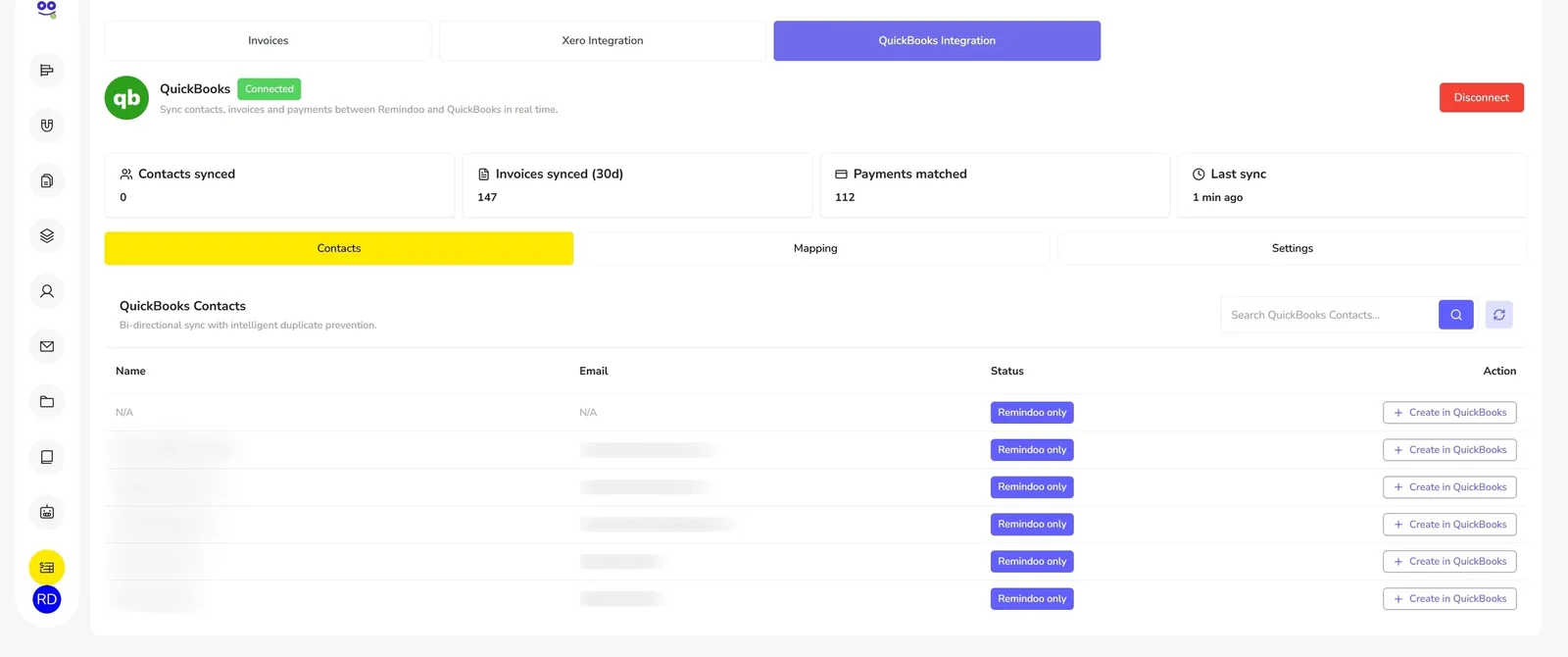
- Status panel shows contacts synced, invoices synced in the last 30 days, payments matched and last sync time
- Contacts list flags records that exist in Remindoo only, with a Create in QuickBooks action
- Bi-directional contact sync with duplicate prevention
- Mapping for a default income account plus service type to account
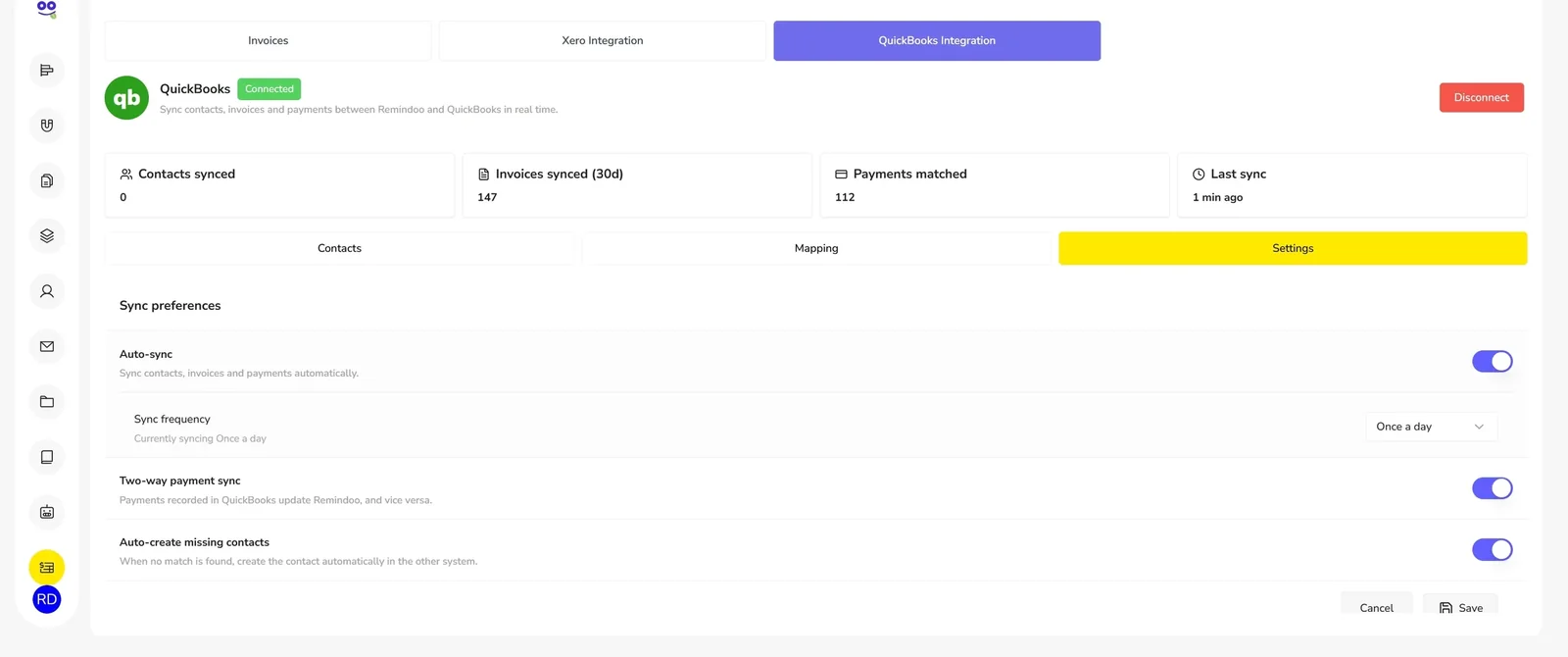
- Settings for auto-sync, sync frequency, two-way payment sync and auto-creating missing contacts
- Pause or disconnect the connection whenever you need to
What goes wrong without a connection
Client data retyped twice
A new client is set up in practice management, then set up again in the ledger, and the two records drift apart the first time an address changes.
Payments recorded in one system only
A payment lands against the invoice in one place and stays invisible in the other, so the firm chases a client who has already paid.
Revenue posted to the wrong account
Without a mapping between service types and income accounts, coding depends on whoever raised the invoice that day.
How Remindoo handles it
| Problem | Workflow in Remindoo | Outcome |
|---|---|---|
| Duplicate data entry | Contact sync runs both ways, with an option to auto-create missing contacts and duplicate prevention built in | One client record maintained in either system |
| Payments out of step | Two-way payment sync, with a payments matched count on the status panel | Both systems agree on what has been paid |
| Inconsistent revenue coding | Set a default income account and map each service type to its own account | Invoices post where the firm expects them to |
| No visibility of the sync itself | Status panel with contacts synced, invoices synced in 30 days, payments matched and last sync | You can see whether the connection is working before month end |
How it works
Connect QuickBooks
Start the connection from the QuickBooks Integration tab in Remindoo and authorize access to your company file.
Review the contacts list
Once connected, the status panel shows contacts synced, invoices synced in the last 30 days, payments matched and the last sync time. Contacts that exist in Remindoo only are flagged, with a Create in QuickBooks action.
Map your income accounts
Choose a default income account, then map each service type to the QuickBooks account it should post to, including external services.
Set the sync schedule
Turn on auto-sync, choose the frequency, enable two-way payment sync and decide whether missing contacts are created automatically. Pause or disconnect from the same screen.
Want to see this against your own client list and service mix? Book a walkthrough and we will show the workflow end to end, then answer the questions specific to how your firm bills.
Book a demoWhy the connection matters for US firms
Most US practices already run their own books in a general ledger, and many of their clients do too. That makes the ledger the system of record for revenue, and practice management the system of record for the work. Problems appear when the two disagree: an invoice raised against a job has no matching entry, or a payment sits in one place for a week before anyone moves it.
A scheduled sync keeps both sides honest without forcing anyone to change how they work. Contacts stay aligned, invoices reach the ledger coded to the right income account, and payments recorded either side show up on both. What it is not is bank reconciliation: Remindoo matches records between two systems, it does not reconcile your bank feed.
What syncs
| Data | Direction | Notes |
|---|---|---|
| Contacts | Both ways | Duplicate prevention; auto-create missing contacts is optional |
| Invoices | Remindoo to QuickBooks | Invoices synced in the last 30 days are counted on the status panel |
| Payments | Both ways | Controlled by the two-way payment sync setting |
| Income accounts | Mapping only | Default account plus one per service type |
Before you connect
| Check | Why | Who usually does it |
|---|---|---|
| Admin access to QuickBooks | Authorizing the connection needs sufficient permissions | Firm administrator |
| Income accounts set up | Mapping service types needs the accounts to exist first | Bookkeeper or controller |
| Consistent service names | Clean mapping depends on services being named the same way | Practice manager |
| Decide on auto-create contacts | Turning it on before a data tidy-up can create records you did not want | Firm administrator |
Remindoo vs manual double entry
| Task | Manual double entry | Remindoo with QuickBooks connected |
|---|---|---|
| Adding a client | Enter it twice | Contact sync, with duplicate prevention |
| Raising an invoice | Create it in the ledger separately | Raised in Remindoo and synced |
| Recording a payment | Update both systems | Two-way payment sync |
| Coding revenue | Chosen invoice by invoice | Mapped per service type |
| Checking it worked | Spot-check at month end | Status panel with last sync |
Frequently asked questions
Does Remindoo integrate with QuickBooks?
Yes. QuickBooks is one of the accounting integrations available from inside Remindoo. You connect it from the QuickBooks Integration tab, authorize access, and then manage contacts, mapping and sync settings from the same place. The connection can be paused or disconnected at any point without affecting your Remindoo data.
What data syncs between Remindoo and QuickBooks?
Contacts sync both ways with duplicate prevention. Invoices raised in Remindoo sync across to QuickBooks. Payments sync both ways when two-way payment sync is enabled. Income accounts are not synced as data; they are mapped, with a default account plus an account per service type so invoices post where you expect.
How often does the sync run?
Automatically, on the frequency you set in the sync settings. Auto-sync can be switched on or off, and the status panel shows the last sync time so you can confirm it is running. Remindoo does not claim real-time syncing; the connection works to the schedule you choose rather than instantly on every change.
Will syncing create duplicate contacts?
Contact sync includes duplicate prevention, and the contacts list shows which records currently exist in Remindoo only, with a Create in QuickBooks action for the ones you want to push. If your two contact lists have drifted apart, review them before turning on auto-create so you are choosing what gets created.
Can I choose which income account invoices post to?
Yes. The mapping screen lets you set a default income account and then map individual service types, including external services, to their own QuickBooks accounts. That keeps revenue coding consistent across the firm rather than depending on which member of staff raised the invoice.
Can I disconnect QuickBooks?
Yes. The connection can be paused, which stops the sync while keeping the settings, or disconnected entirely from the sync settings screen. Your Remindoo invoices, clients and payment records stay where they are, and invoicing continues to work without an accounting integration connected.
Does Remindoo work with QuickBooks Desktop?
Contact us to confirm support for your QuickBooks version before you plan a rollout. We would rather check your specific setup than give a general answer here that does not hold for your company file.
Related for US firms
Keep practice management and QuickBooks in step
Contacts, invoices and payments aligned on the schedule you choose.
QuickBooks and Intuit are trademarks of Intuit Inc. Xero is a trademark of Xero Limited. Remindoo is not affiliated with or endorsed by Intuit or Xero unless stated.